Dr. UTM Data Bridge Documentation

Backend revenue & profit inside Meta Ads Manager

What this is (30-second overview)

Dr. UTM Data Bridge injects real backend revenue and conversion data directly inside Meta Ads Manager — next to your ads — so you can optimize using real outcomes, not platform guesses.

What you get:

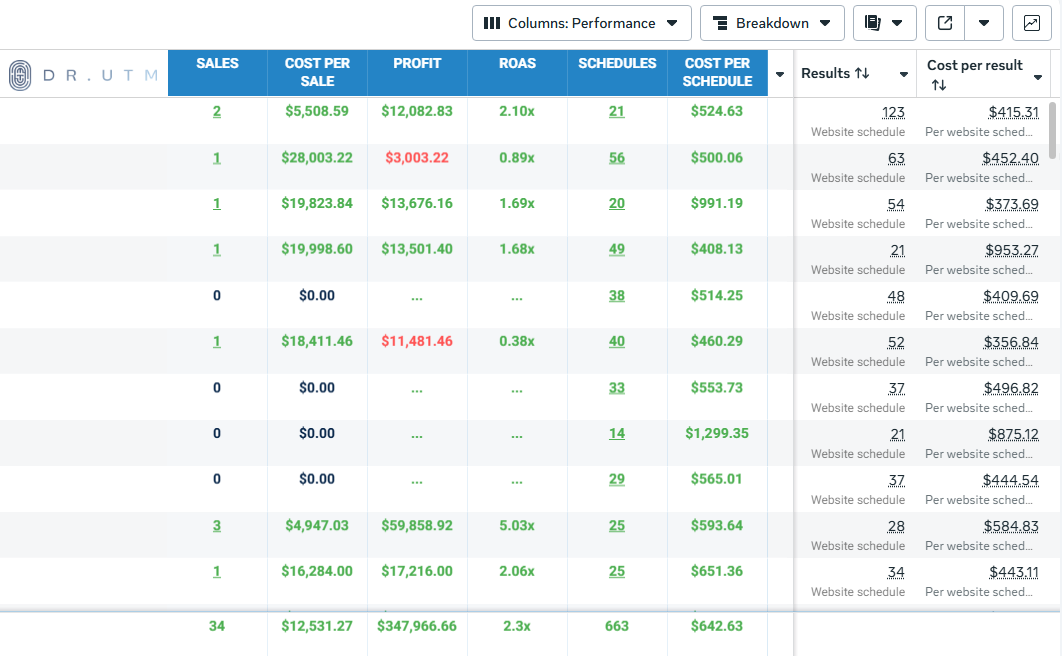
    • See Sales, Revenue, Profit and ROAS inline inside Meta Ads Manager

    • No tab switching, no exports, no Looker dashboards required

    • Powered by server-side, deduplicated Dr. UTM data

In practice, this turns Meta Ads Manager from a reporting surface into a decision surface.

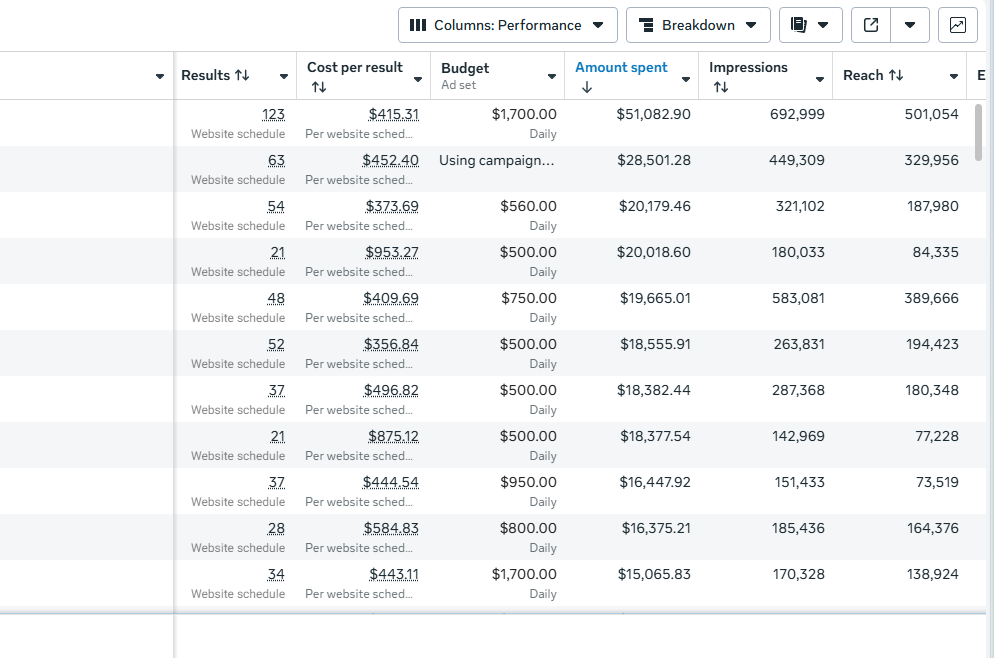
Before Dr. UTM Data Bridge

After Dr. UTM Data Bridge

Where the extension works

It displays metrics directly into Meta Ads Manager.

Supported levels:

  • Campaigns — supported
  • Ads — supported
  • Ad Sets — not supported yet


Why Ad Sets aren’t supported yet:
Meta’s DOM structure at the Ad Set level currently prevents reliable row injection without performance tradeoffs.

Status: actively tracked and planned.

Installation

1️⃣ Install the Chrome extension

    1. Open the Chrome Web Store listing:
      https://chromewebstore.google.com/detail/dr-utm-data-bridge/liefodheigfoplkgifknkidkgihbfnhc

    1. Click Add to Chrome

    1. Confirm Add extension


2️⃣ API Key (required)

🔐 An API key is required for the extension to fetch and display data.


    • Request your API key from the Dr. UTM Customer Success team

  • Enter it after installing the extension
    (or via the extension’s settings page, depending on deployment)

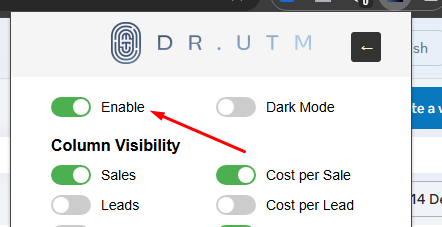
Once entered, you’ll need to toggle ON the enable button and expand the name column (campaign/ad) and the data will appear:

If you don’t see Dr. UTM data, it does NOT mean the extension is broken.

The injected table requires a minimum horizontal width inside Meta Ads Manager.

If there isn’t enough space, you’ll see a hint like:

“Expand the Ad Name column to let UTM data fit in it.”

Fix:

Or widen the table layout
Once enough space is available, the table renders automatically.

Drag to expand the Ad Name column

  • The date range in Meta Ads Manager changes
  • You switch between Campaigns ↔ Ads
  • You paginate (Next / Previous page)
  • You scroll (visible rows are re-rendered)
  • You click Reload Table (if present)

No manual reloads are required.

Revenue Metrics

  • Sales
  • Total Revenue
  • Profit
  • ROAS

These metrics reflect actual backend outcomes, not Meta’s browser attribution.

Leads / Cost per Lead

Applications / Cost per Application

Schedules / Cost per Schedule

All funnel metrics are powered by server-side Dr. UTM events.

Clicking SalesApplications, or Schedules (when the value is greater than 0) opens a conversion-level audit view.

This is useful for:

  • QA and validation
  • Ops and delivery reviews
  • Revenue reconciliation

What to expect:

  • Date
  • Email
  • Name
  • IP
  • URL
  • User Agent

    Pagination (10 rows per page)

Privacy & safety:

No actions are taken on Meta accounts

Read-only

No data is modified

Totals reflect blended, backend-truth metrics, not Meta-reported aggregates.

Totals are calculated from stored Dr. UTM data and:

  • Filtered to the current Meta account_id (when available)
  • Only include rows where object_id is present

Totals logic:

ROAS → totalRevenue ÷ totalSpend

Sales / Leads / Applications / Schedules → summed

Total Revenue → summed

Profit → summed per item (revenue − spend)

Cost per * → totalSpend ÷ totalCount

Support

Questions or need help?

Reach out to your Dr. UTM Customer Success manager or message us in Slack.